

View Your App
Bfloat provides multiple ways to preview your app during development, depending on whether you’re building a web or mobile application.Web Apps
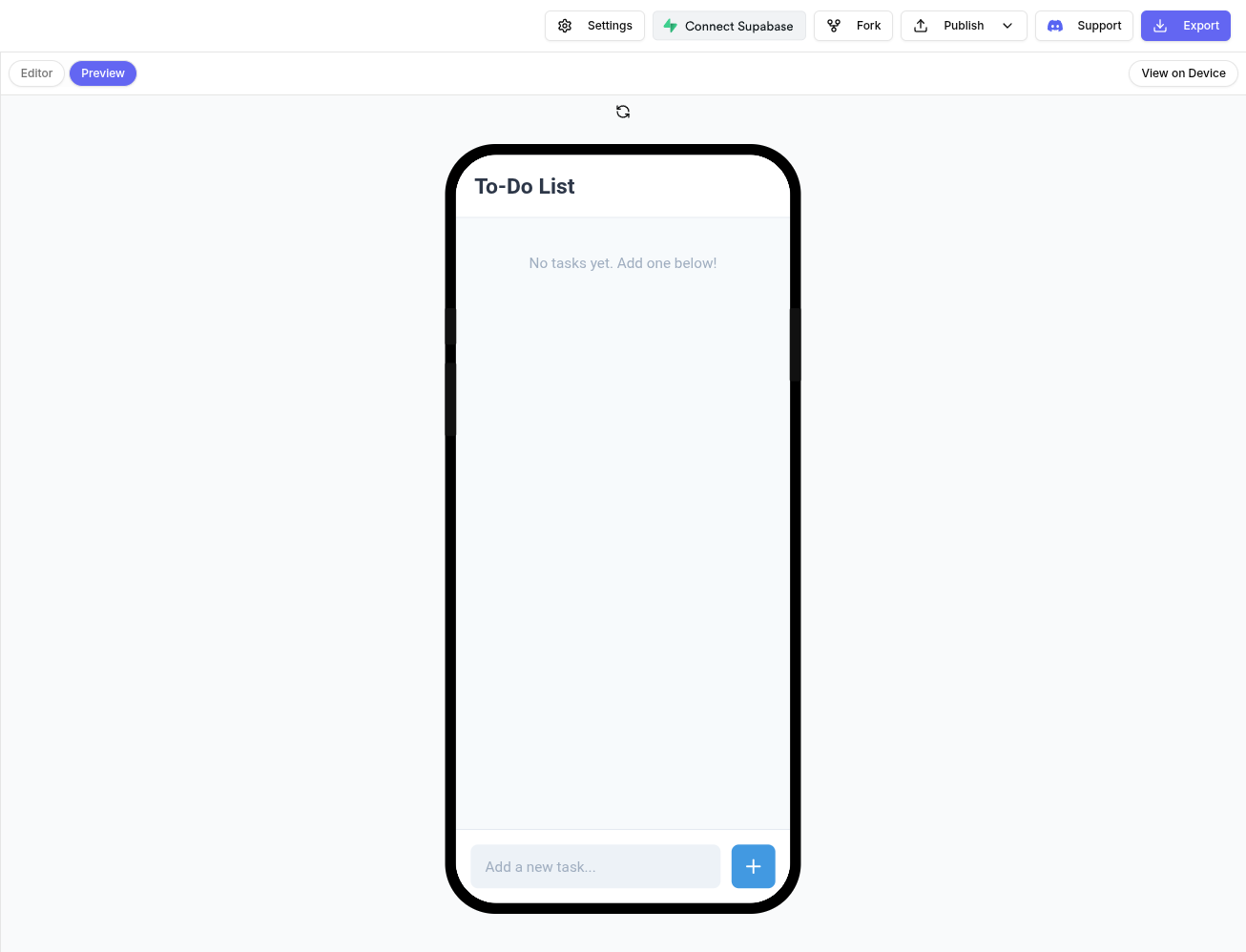
For web applications (Next.js, Vite), you can preview directly in the browser:- Click on the Preview panel in your project workspace
- Your app will load in an embedded browser window
- Changes are reflected in real-time as you develop
Mobile Apps (Expo)
For mobile applications, you have two preview options:Via Expo Go (Recommended)
Preview your app on a real device for the most accurate experience:- Download the Expo Go app on your mobile device:
- In your Bfloat project, click the View on Device button
-
Scan the QR code:
- iOS: Use your phone’s Camera app
- Android: Use the Expo Go app’s scanner
- Your app will load on your device with live updates
Via Browser Preview
You can also preview Expo apps in the browser:- Click on the Preview panel
- The app renders using Expo’s web support
- Useful for quick checks, but device preview is more accurate for mobile-specific features
Preview Features
Live Reload
Changes you make in chat or code are automatically reflected in the preview.Console Logs
View debugging output and errors in the browser’s developer console.Device Features
When using Expo Go, you can test device-specific features like:- Camera access
- Push notifications
- Location services
- Native gestures
Troubleshooting
QR Code Not Scanning
- Ensure your phone and computer are on the same network
- Try refreshing the QR code in Bfloat
- Make sure Expo Go is up to date
Preview Not Loading
- Check the browser console for errors
- Verify your project builds successfully
- Try clearing the preview cache
Next Steps
Once you’re happy with your app:- Configure project settings for production
- Publish to web for instant deployment
- Publish to iOS or Android app stores