

Expo Integration
Bfloat uses Expo and Expo Application Services (EAS) to build and deploy your mobile applications to iOS and Android. This integration enables you to preview apps on your device, create production builds, and submit to app stores.Getting Started
Prerequisites
- A Bfloat AI account
- An Expo account (free tier available)
Setting Up Expo Integration
Step 1: Create an Expo Account
- Go to Expo and create an account
- Note your Expo username for later
Step 2: Create a Robot Access Token
Bfloat needs an access token to build and deploy apps on your behalf:-
Go to your Expo access tokens page:
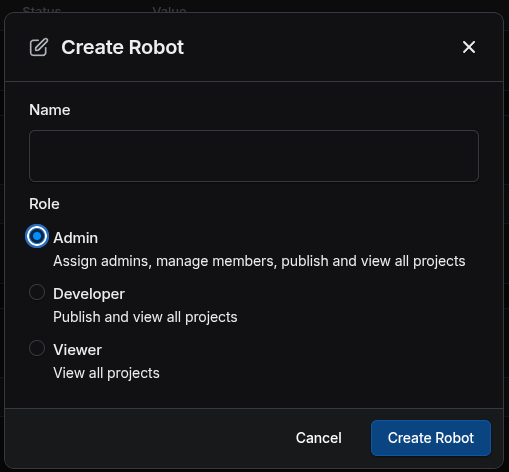
https://expo.dev/accounts/{your-expo-username}/settings/access-tokens - Click Create a robot to create a new robot account
-
Select the robot’s role:
- Admin: Full access (recommended for production builds)
- Developer: Limited access for development builds
- Click Create Token to generate a new access token
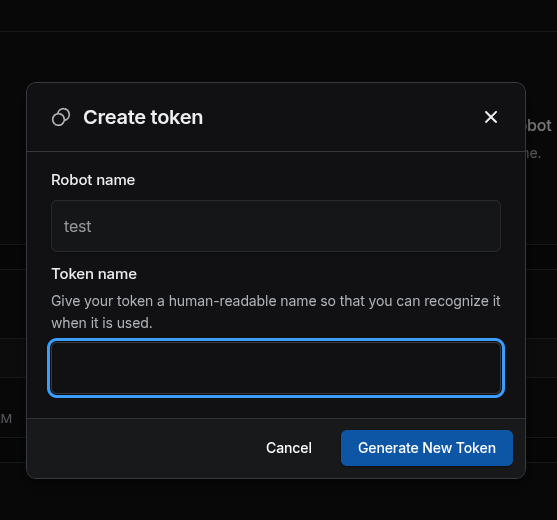
- Copy the access token (you won’t be able to see it again)
Step 3: Connect to Bfloat
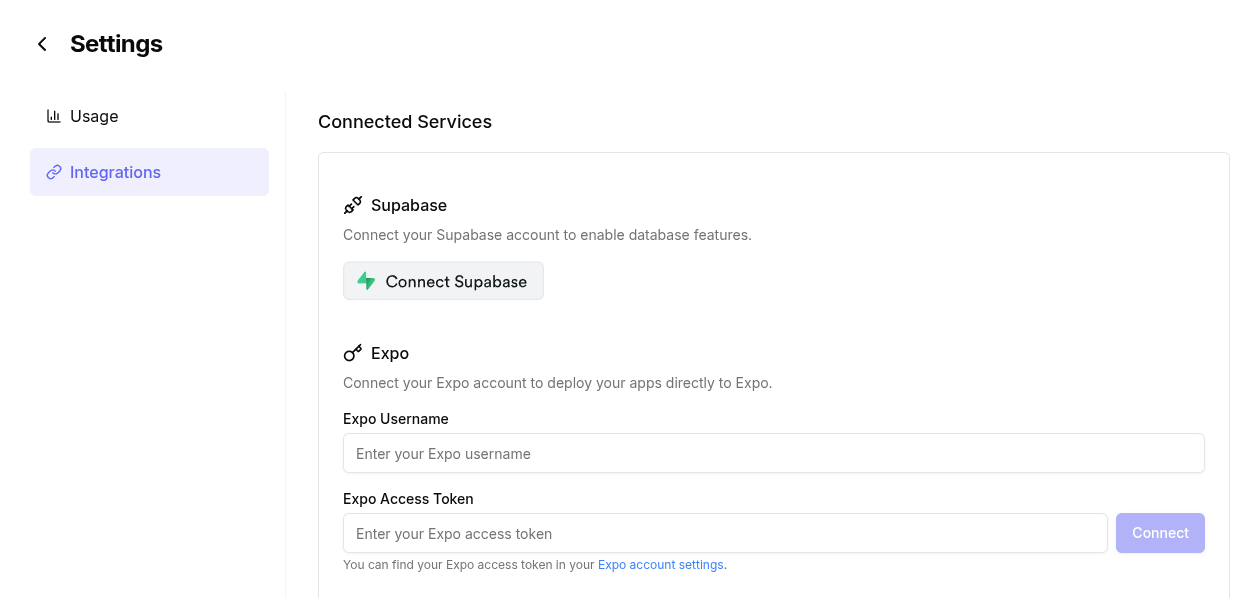
- In Bfloat AI, click your avatar in the sidebar
- Select Settings
- Scroll to the Integrations section
- Find Expo and enter:
- Your Expo access token
- Your Expo username
- Click Connect
What Expo Enables
Once connected, you can:Preview Apps
- View your app on your device using Expo Go
- See live updates as you develop
Development Builds
- Create development builds for testing
- Test native features not available in Expo Go
Production Builds
- Build iOS
.ipafiles for App Store submission - Build Android
.apkor.aabfiles for Google Play
Over-the-Air Updates
- Push updates to users without going through app store review
- Instant deployment of JavaScript changes
EAS Build
Bfloat uses EAS Build to create your production apps:| Build Type | Platform | Output |
|---|---|---|
| Preview | iOS | Installable via Expo Go |
| Preview | Android | APK for testing |
| Production | iOS | IPA for App Store |
| Production | Android | AAB for Google Play |
Common Issues
Build Failing
- Ensure your Expo token has the correct permissions
- Check that your project’s
app.jsonis properly configured - Verify your bundle identifier/package name matches app store settings
Token Invalid
- Tokens can expire; generate a new one if needed
- Make sure you’re using a robot token, not a personal token