
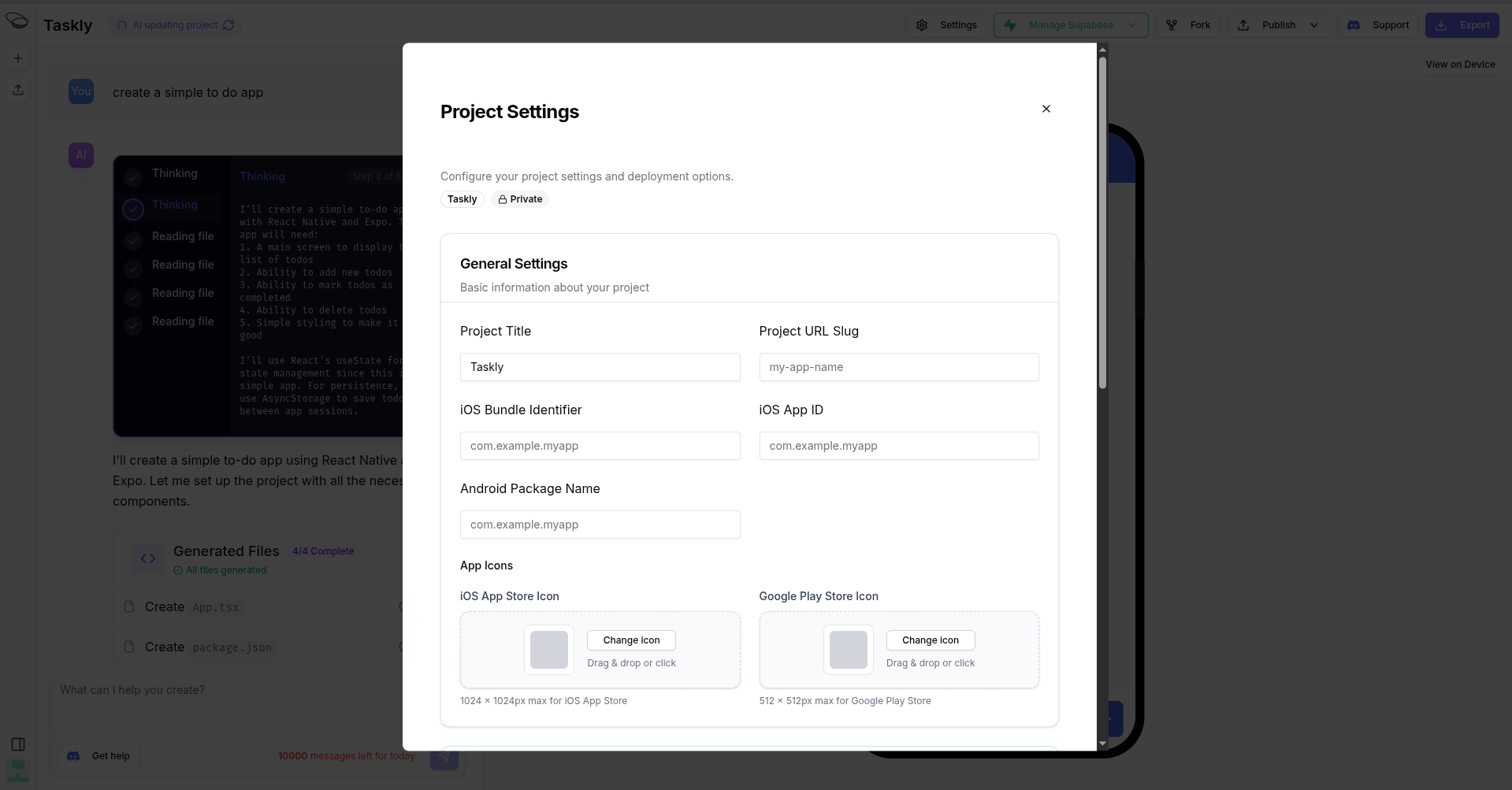
Project Settings
Before publishing your app, configure your project settings to ensure a smooth deployment. Access settings by clicking the Settings button in your project workspace.General Settings
Project Title
The display name of your project. This appears in your Bfloat dashboard and may be used as the default app name.Project URL Slug
A URL-friendly identifier for your project. Used for:- Web deployments:
{slug}.bfloat.app - Project sharing links
my-task-app
Platform Identifiers
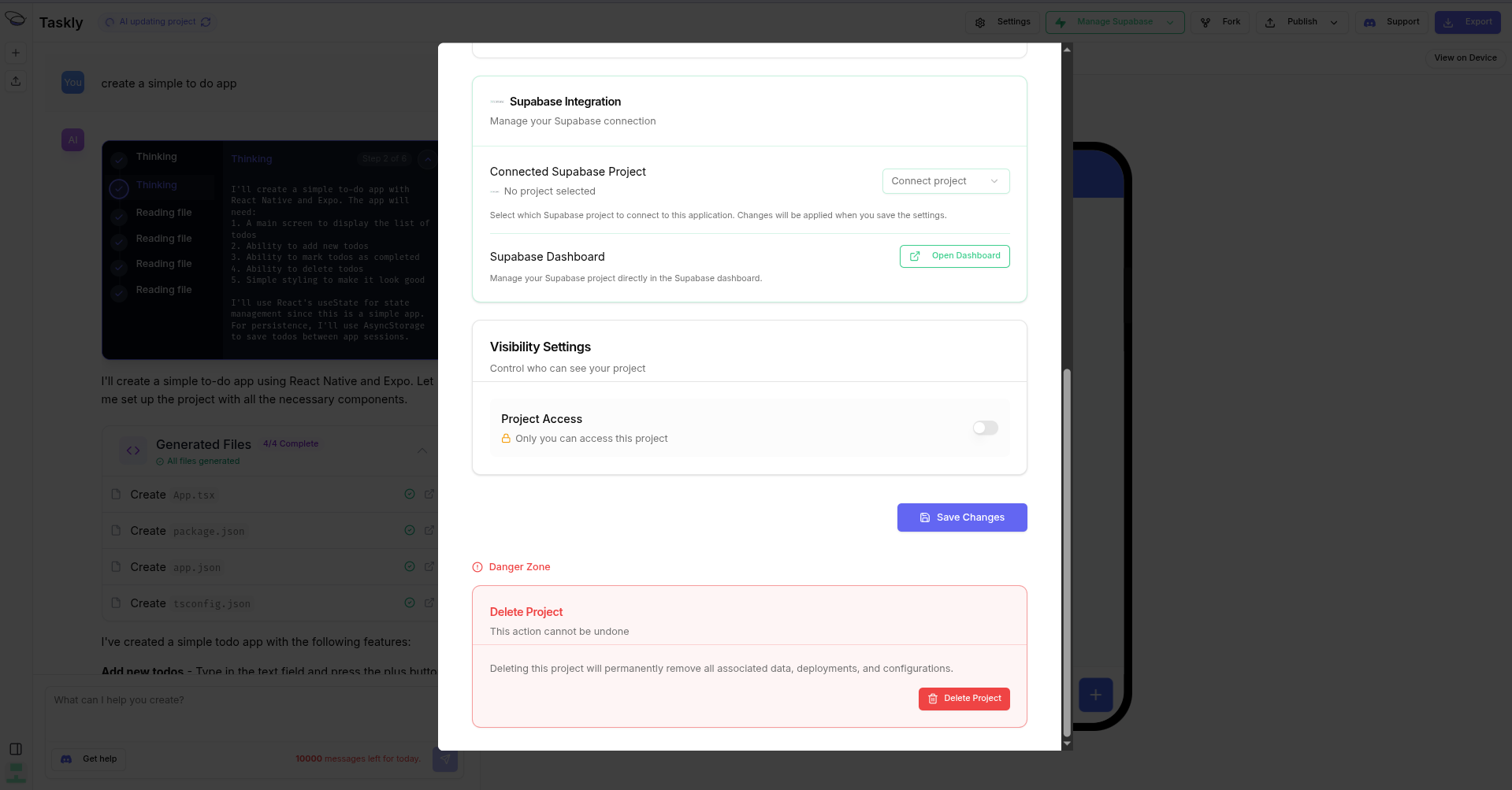
iOS Bundle Identifier
A unique reverse-DNS string that identifies your iOS app. Required for App Store publishing. Format:com.yourcompany.appname
Example: com.acme.taskmanager
This must match the Bundle ID you created in your Apple Developer account. See the App Store Connect Integration guide for setup instructions.
iOS App ID
The numeric identifier assigned to your app in App Store Connect. Found in your app’s App Store Connect dashboard.Android Package Name
A unique identifier for your Android app, following the same reverse-DNS format as iOS. Format:com.yourcompany.appname
Example: com.acme.taskmanager
This must match the package name in your Google Play Console.
App Icons
Upload your app icons for iOS and Android. Bfloat automatically generates all required sizes:iOS
- 1024x1024 App Store icon
- Various device sizes (60x60 to 180x180)
Android
- Play Store icon (512x512)
- Adaptive icons for different devices
Environment Variables
Manage environment variables for your project:- Go to Settings > Environment Variables
- Add key-value pairs for your app’s configuration
- Mark variables as public if they should be accessible in client-side code
- API endpoints
- Third-party service keys
- Feature flags
Integrations
Connect your project to backend services:| Integration | Platform | Purpose |
|---|---|---|
| Convex | Both | Real-time database and backend |
| Stripe | Web | Payment processing |
| RevenueCat | Mobile | In-app purchases |
| Supabase | Both | Database and authentication |
Visibility Settings
Project Access
Control who can view your project:- Private (default): Only you can access the project
- Public: Anyone with the link can view the project
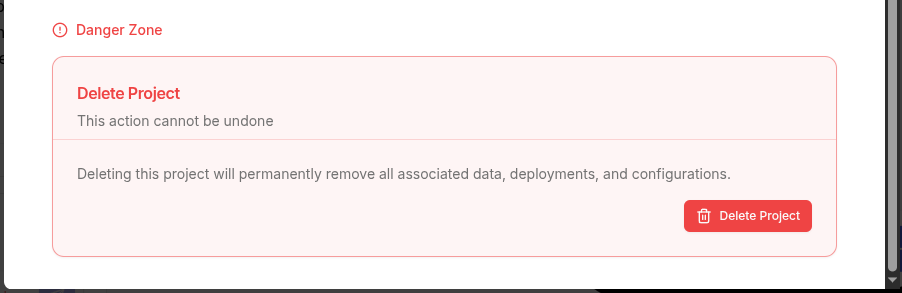
Danger Zone
Delete Project
To delete a project:- Scroll to the Danger Zone section
- Click Delete Project
- Confirm the deletion
Next Steps
After configuring your settings:- Publish to Web for instant deployment
- Publish to iOS to submit to the App Store
- Publish to Android to submit to Google Play