

Web Publishing
Bfloat makes it easy to deploy your web applications with one click. Your app will be hosted on a custom subdomain ofbfloat.app.
Prerequisites
- A Bfloat AI account
- A web project (Next.js, Vite, or similar)
- Project settings configured (title, slug)
Deploying Your Web App
Step 1: Open Publish Options
- Go to your project page in Bfloat AI
- Click the Publish button in the top right corner
- Select Publish to Web
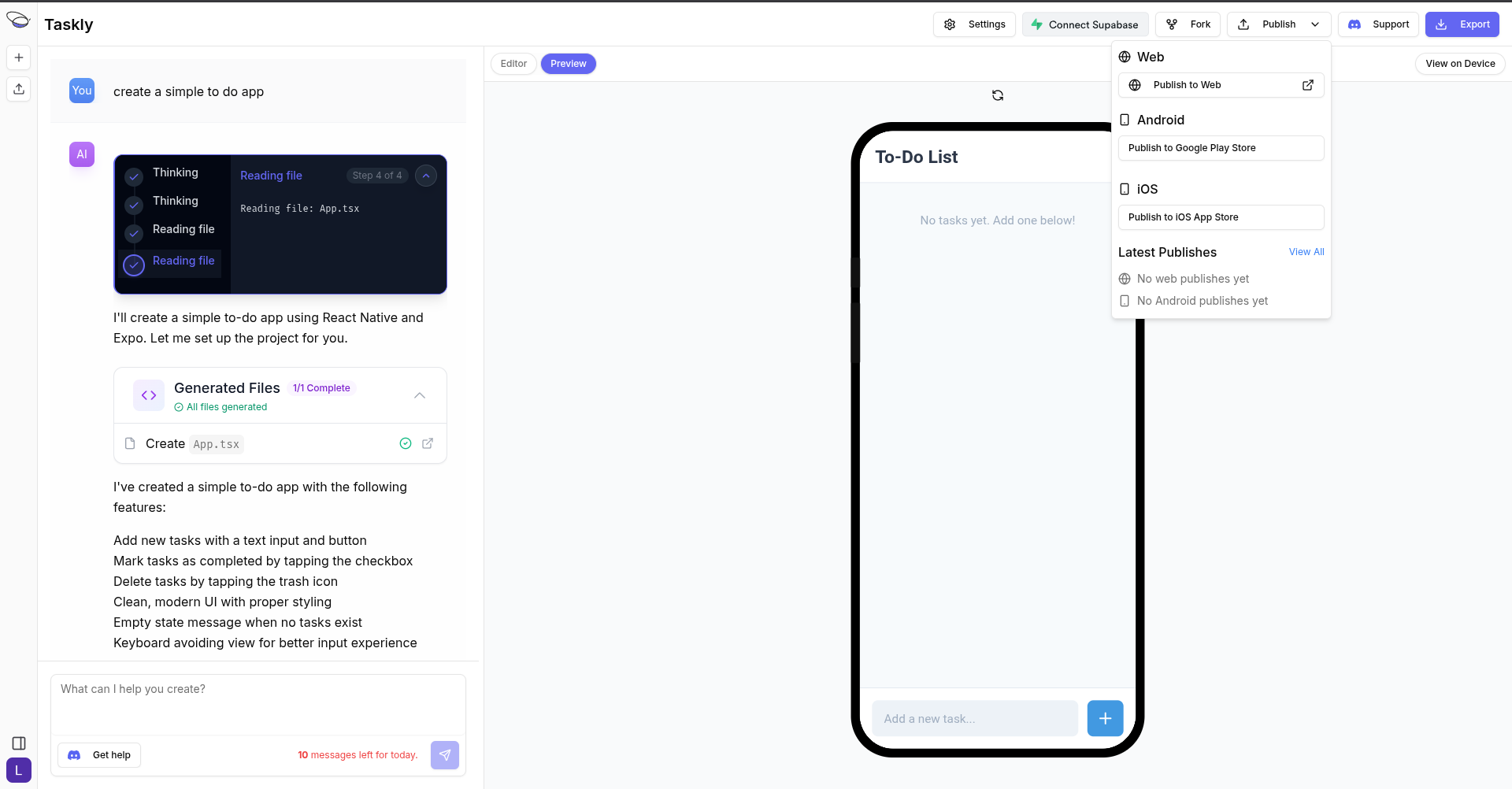
Step 2: Configure Deployment
Before deploying, ensure your project settings are correct:- Project URL Slug: This determines your deployment URL
- Environment Variables: Add any required API keys or configuration
Step 3: Deploy
Click Deploy to start the deployment process. Bfloat will:- Build your application
- Optimize assets for production
- Deploy to the CDN
- Assign your custom domain
Step 4: Access Your App
Once deployment is complete, your app will be available at:Deployment Features
Automatic HTTPS
All deployments include free SSL certificates with automatic renewal.Global CDN
Your app is served from edge locations worldwide for fast load times.Automatic Builds
Each deployment triggers a fresh build of your application.Environment Variables
Production environment variables are automatically injected during build.Viewing Deployments
To see all your deployments:- Click the Publish button
- Click View All
- See deployment history with status and timestamps
Deployment Status
| Status | Description |
|---|---|
| Pending | Deployment queued |
| Building | Application is being built |
| Deploying | Build complete, deploying to CDN |
| Live | Deployment successful, app is accessible |
| Failed | Deployment encountered an error |
Troubleshooting
Build Failed
- Check the build logs for specific errors
- Verify all dependencies are correctly installed
- Ensure environment variables are set
App Not Loading
- Clear your browser cache
- Check the browser console for errors
- Verify your app works in local preview
Environment Variables Not Working
- Confirm variables are set in project settings
- Rebuild and redeploy after adding new variables
- Check variable names match what your code expects
Next Steps
- Publish to iOS to submit to the App Store
- Publish to Android to submit to Google Play
- Set up integrations for backend services