

iOS Publishing
Bfloat uses Expo EAS (Expo Application Services) to build your iOS apps and submit them to the Apple App Store. This guide walks you through the complete publishing process.Prerequisites
Before publishing to iOS, ensure you have:- A Bfloat AI account
- An Expo Integration configured
- An App Store Connect Integration configured
- An Apple Developer Program membership ($99/year)
Step 1: Configure Your App
Bundle Identifier
Set your iOS Bundle Identifier in project settings:- Click Settings in your project
- Enter your iOS Bundle Identifier (e.g.,
com.yourcompany.appname) - Enter your iOS App ID from App Store Connect
- Click Save Changes

Your Bundle Identifier must match exactly what you created in the Apple Developer Portal. See the App Store Connect Integration guide.
App Icons
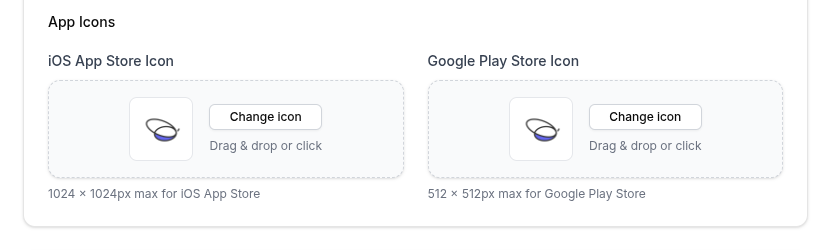
Upload your iOS app icon:- Open Settings > App Icons
- Upload a 1024x1024 PNG image
- Bfloat generates all required sizes automatically
Step 2: Create Your App in App Store Connect
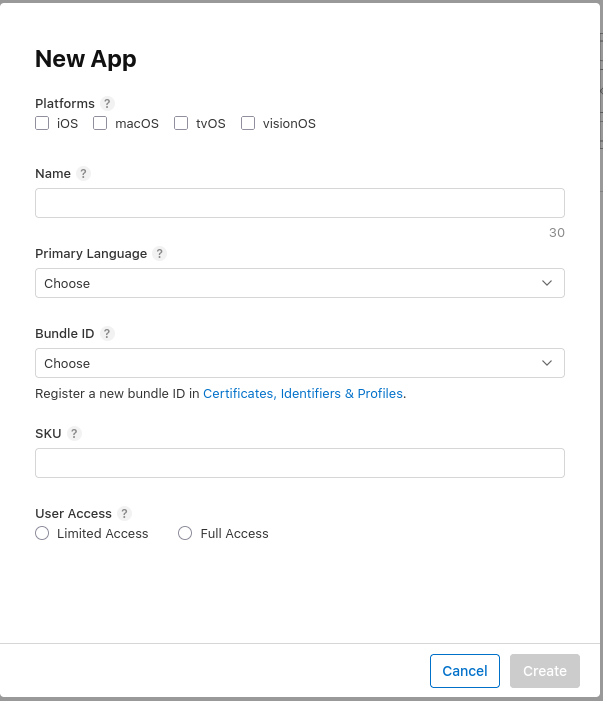
If you haven’t already:- Log in to App Store Connect
- Go to My Apps > + > New App
- Fill in:
- Platform: iOS
- Name: Your app’s display name
- Bundle ID: Select the one you created
- SKU: A unique identifier (can match Bundle ID)
- Click Create
Step 3: Build Your App
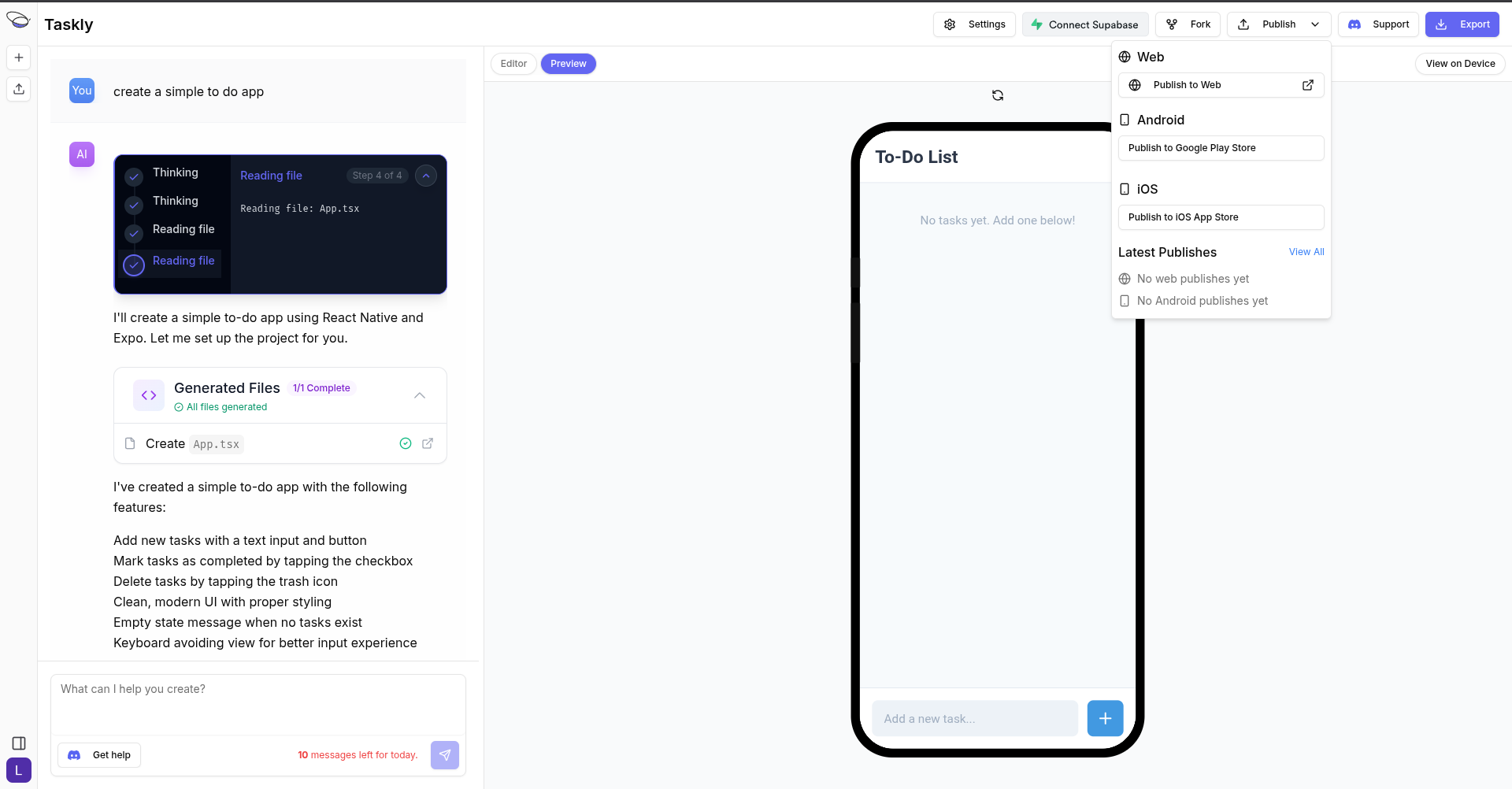
- Go to your project page in Bfloat AI
- Click the Publish button
- Select Publish to iOS
| Build Phase | Description |
|---|---|
| Queuing | Build added to EAS queue |
| Building | Compiling native iOS code |
| Signing | Applying certificates and provisioning |
| Complete | IPA file ready for submission |
Step 4: Submit to App Store
After the build completes:- Bfloat submits your app to App Store Connect
- You’ll be notified when the upload is complete
- Go to App Store Connect to complete your submission
In App Store Connect:
- Select your app
- Fill in required metadata:
- Description
- Keywords
- Screenshots
- Privacy policy URL
- Submit for review
App Store Review
Apple reviews all app submissions:| Review Phase | Typical Duration |
|---|---|
| Waiting for Review | 1-2 days |
| In Review | 1-24 hours |
| Approved/Rejected | - |
Common Rejection Reasons
- Missing privacy policy
- Incomplete metadata
- Broken functionality
- Guideline violations
Viewing Build Status
Check your build status:- Click Publish button
- Click View All to see all builds
- Check the Expo dashboard for detailed build logs
Troubleshooting
Build Failed
- Verify your Expo token has Admin permissions
- Check that your Bundle ID matches App Store Connect
- Review build logs in the Expo dashboard
Signing Issues
- Ensure your App Store Connect API key is valid
- Verify your Apple Developer membership is active
- Check that your Bundle ID is registered
Upload Failed
- Confirm your App Store Connect integration is connected
- Verify you have the App Manager role on your API key
Resources
- App Store Connect Integration - Complete setup guide
- Expo Integration - Configure EAS Build
- Apple App Store Review Guidelines